Christmas Group Dance: Photo & Casting Guide
 Christmas Dance
Create a Christmas group dance with separate photos. Match each person to the right upload slot, review the cast and choose your video quality.
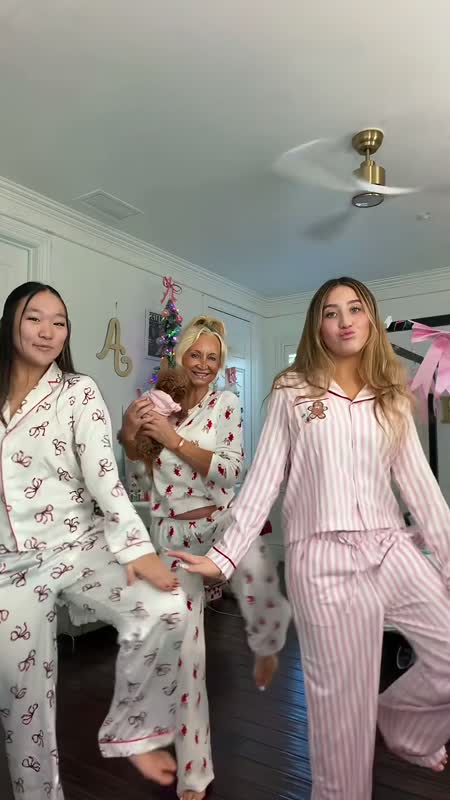
A Christmas group dance can feature friends, a couple or your holiday crew. The important preparation step is assigning each uploaded photo to the correct dancer. Christmas Dance gives every person a separate slot so you can control the intended cast instead of relying on a single crowded group photo.
Start with the Christmas dance video generator and preview a template before uploading your photos.
Assign photos for your Christmas group dance
Watch the reference video before choosing photos. Count the people and identify their positions from the viewer's perspective. Left means the left side of the video on your screen. If a label mentions clothing or distance from the camera, use that detail to identify the role; your uploaded photo does not need to show the same clothing.
The Matching Pajamas template has a left dancer farther from the camera and a right dancer closer to it. The Bestie Christmas Dance distinguishes the left dancer in dark blue from the right dancer in green. The Christmas Crew has left, center and right positions; the center reference person is holding a dog. Follow the actual labels on your selected template.
For the next step, read How to Make a Christmas Dance Video from Photos.
Use separate photos, not one group image
Choose one photo for each person. A face should be clearly visible and large enough to inspect in the upload preview. Even lighting and an uncluttered composition make the source easier to review. Avoid using the same photo in multiple slots. If you selected the wrong person, replace that photo before starting the task.
Ask everyone involved for permission to use their photo. Do not treat a public social-media profile picture as permission. Choose a reference soundtrack you are allowed to use, especially if you intend to publish the final clip outside your private group.
For the next step, read Christmas Dance Video Quality: 480p vs 720p.
Review the cast before generating
Read the first role label, inspect its thumbnail, then repeat for every slot. This is particularly helpful when two people have similar hairstyles or outfits. Changing the template clears the selected cast, because a different template can have different people or positions. Upload the photos again according to the new labels.
Compare the current Christmas Dance credit packs before choosing how many videos to make.
Group videos use the same credit rates
A group template does not add a per-person charge. A 480p video costs 1 credit and a 720p video costs 2 credits. All packs support both qualities. Select the resolution based on how you want to use the finished video and check the cost displayed on the generation button.
Check everyone in the finished clip
Review each person throughout the video, rather than judging only the opening frame. Look at the intended identity, face visibility and how the movement reads when dancers overlap. A correct photo assignment guides the generation, but it does not guarantee perfect likeness, motion or interaction.
If you want another version, remember that starting a new generation uses credits again. A task confirmed as failed returns the credits it charged. Keep the task reference when asking about a result or a billing issue; it identifies the exact generation you are discussing.